Creator
Vextur
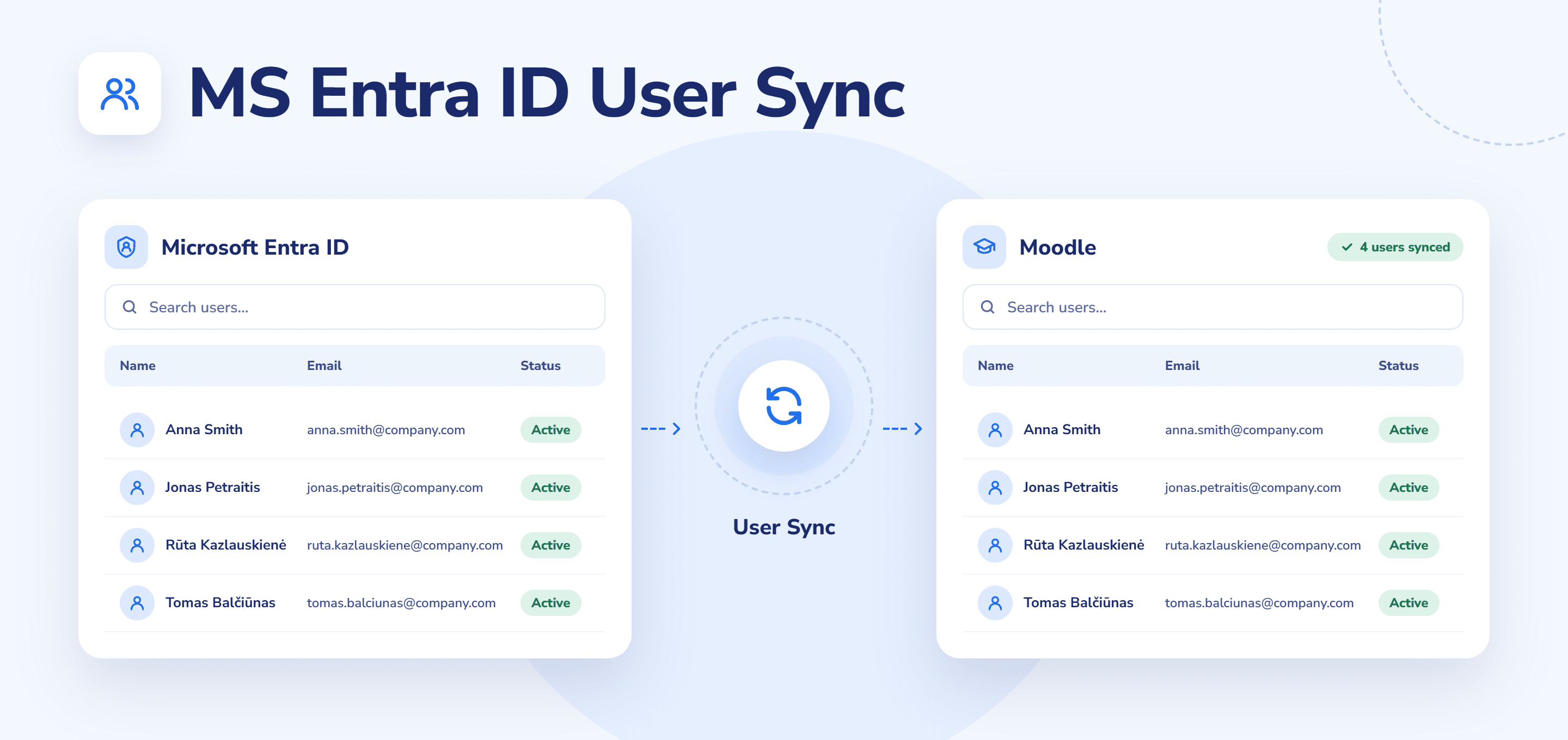
Microsoft Entra ID User Sync

From Microsoft to Moodle: Sync Your Learners, Departments, and Leadership Roles

Pull users from multiple sources into one Moodle dashboard and automate account creation.
Seamless Enrollment
Smart Syncing
Many Sources

Features and benefits

Create Moodle accounts automatically

Your learners are ready to enroll from day one. Sync your existing user accounts to Moodle from Microsoft Entra ID.

Pull users from multiple sources

Set up as many tenant connections as you need, so your teams from around the world and different departments can come together in Moodle.

Sync only the people you need

With flexible user-creation rules, you can filter on multiple profile fields at once so only the people you need land in Moodle.

Keep enrollment going

Hired many people at once? No need to enter their data one by one for onboarding courses. Sync them into Moodle automatically, and let enrollment roll.

Map the profile details

Map and synchronize fields like email, department, position, and direct manager, so Moodle profiles are complete and ready when you are.

Manage your accounts

Use custom rules to suspend Moodle accounts based on a field in Entra ID like a leave date, giving you an easy way to manage access without a direct HR connection.

Don’t compromise on security

Microsoft offers an industry-leading security standard with strong authentication and risk-based conditional access to keep your data protected.
1

Add your tenant connections

Create a connection to your Microsoft Entra ID by entering the tenant details. You can add as many connections as you need, so multiple Entra ID sources feed into Moodle.
2

Add settings for each connection

Once a connection is established, add tenant settings for it. This is where you configure how synchronization behaves for that source.
3

Set your user-creation rules

Define the rules that decide who gets created in Moodle. You can also combine multiple conditions across profile fields.
4

Set update and suspend rules

Configure separate rules for updating and suspending accounts. Decide which fields stay in sync after creation, and set conditions that automatically suspend a Moodle account.
5

Map your profile fields

Choose which fields to synchronize, from names and email to department, position, and direct manager, so Moodle profiles carry the details you need for an optimal training experience.
6

Let synchronization run

With connections, rules, and mappings in place, users are created, updated, and suspended automatically according to your logic, keeping Moodle aligned with your Entra ID.

How the Microsoft Entra ID User Sync plugin works

TESTIMONIALS

What people are saying

FAQs

Yes, the plugin connects to your Microsoft Entra ID and creates user accounts automatically, so you don’t have to add people by hand and can automate enrollment.
Yes, Entra ID provides all accounts, but the plugin lets you write multiple rules across different profile fields to control who gets synced to Moodle.
Yes, you can create suspend rules based on a field in Entra ID, such as a leave date or new role. When that condition is met, the Moodle account is suspended automatically.

Build Your Perfect Moodle Experience

Extend Moodle with plugins tailored to your organisation’s needs.

Scroll to Top

Don't Miss a Thing!

envelope icon

Get the latest news, updates, and practical insights about Moodle and digital learning – straight to your inbox.